Frequently Asked Questions
Child Protection Online Training is provided by the Government. No fee will be charged.
Yes. "Child Protection Online Training", including "Online Self-learning Training" and "Webinars", is conducted entirely online, allowing the participants complete the required training in a flexible manner.
After completing the registration procedures on this website, you can access the "Online Self-learning Training" page as a registered participant and click "Start Learning" to begin the online self-learning training.
After completing the registration procedures on this website, you can access the "Webinar" or related online courses page as a registered participant. From there, click "Sign Up Now" to sign up. Upon successful registration, you will receive a confirmation email, and an email containing the unique participation link at least 2 days before the start of the webinar.
On the day of the webinar, please enter the webinar on time through your unique participation link (this link can only be accessed through one device) to start your learning. To facilitate a smooth joining process, kindly install the Zoom desktop client or mobile app on your device prior to the webinar start.
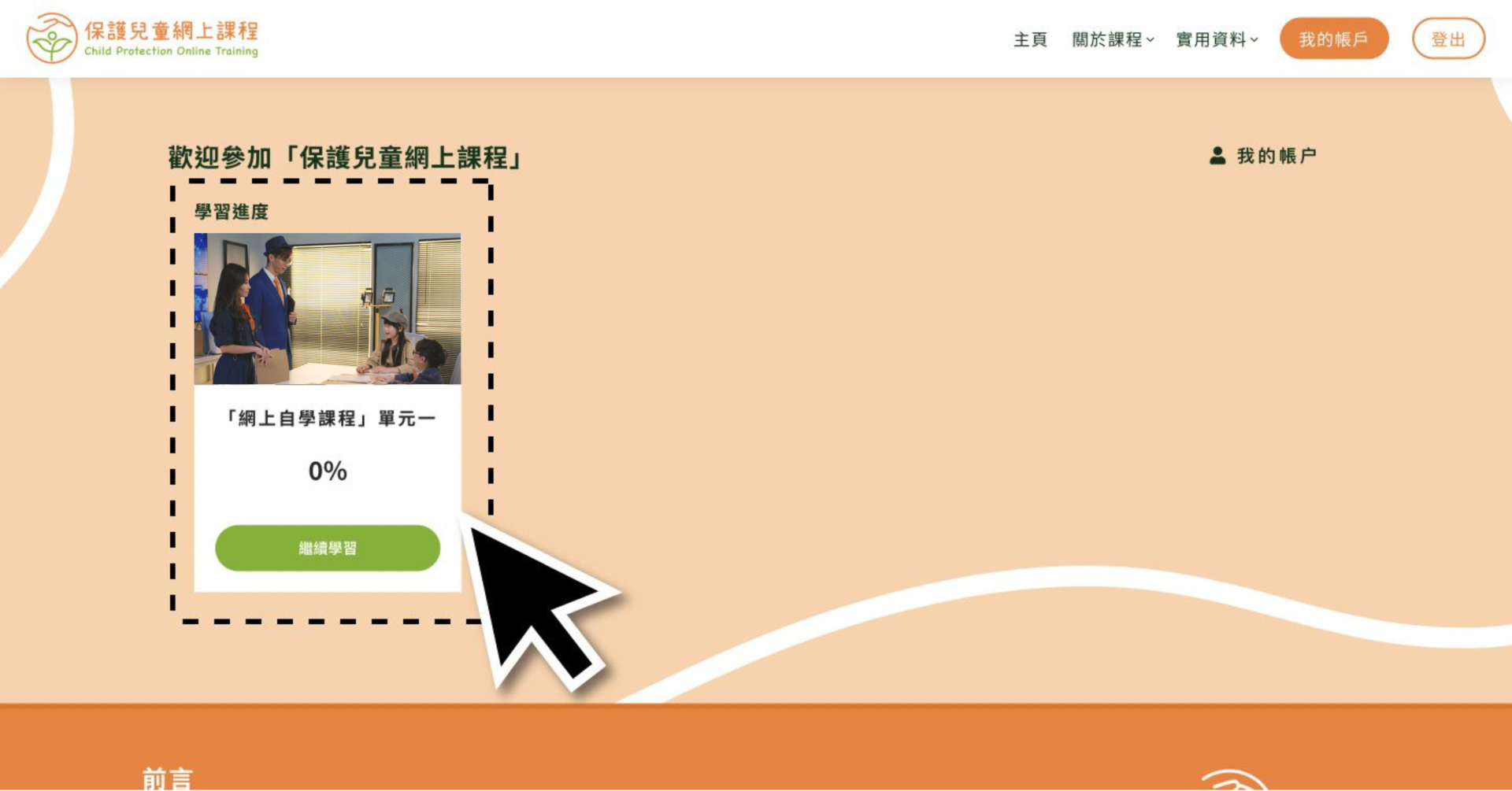
After logging in to this website as a registered participant, you can check your learning progress displayed at the top of the page.
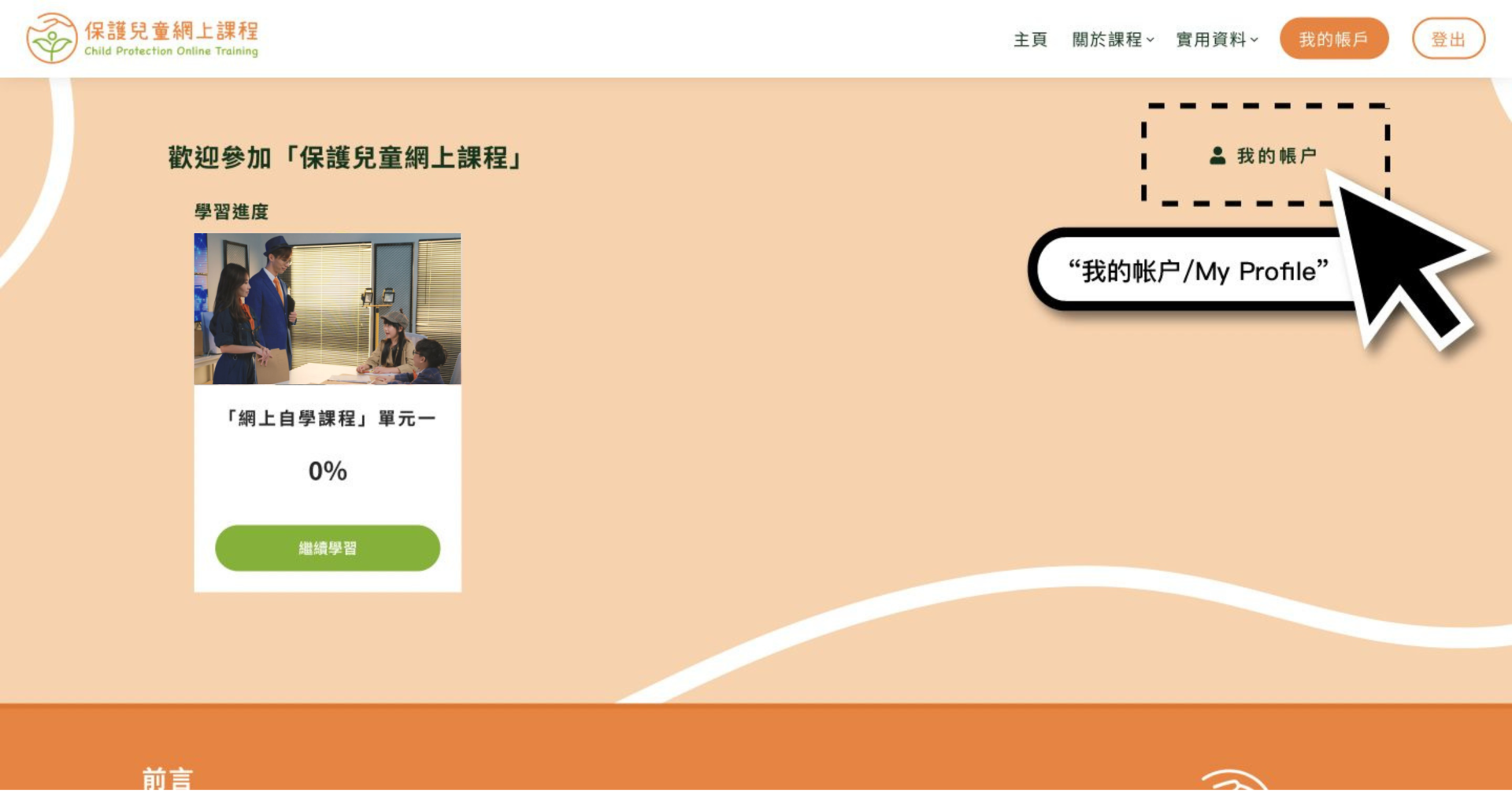
Or you can click on "My Profile" to check the learning progress of your registered training.
An e-certificate will be issued in respect of each quiz for which the participant has achieved a score of 90% or higher in the post-course quiz.
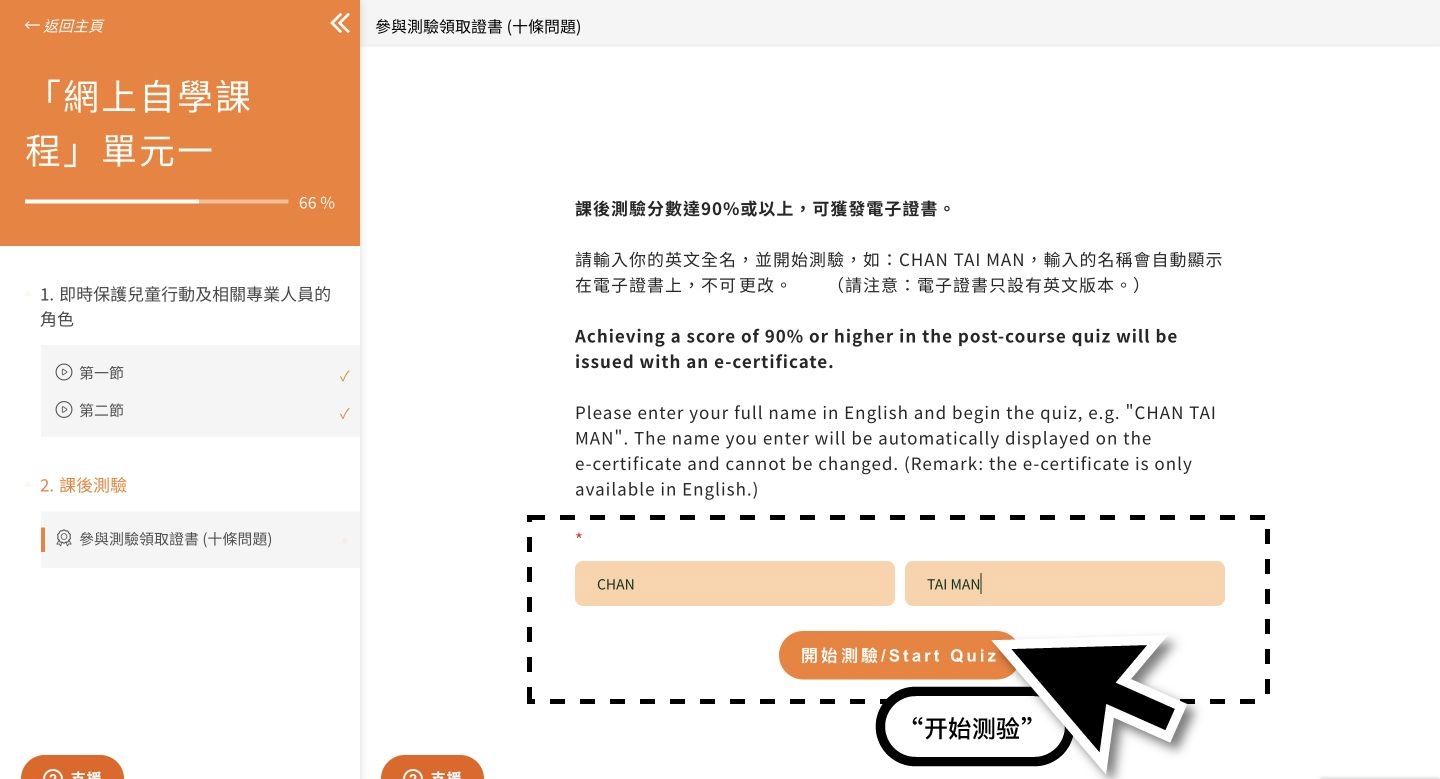
After completing the Online Self-Learning Training, registered participant can go to the page of "Post-Course Quiz" to fill in your full name in English and then click "Start Quiz". Please note that the name you have entered will be displayed on the e-certificate, and the name could not be changed.
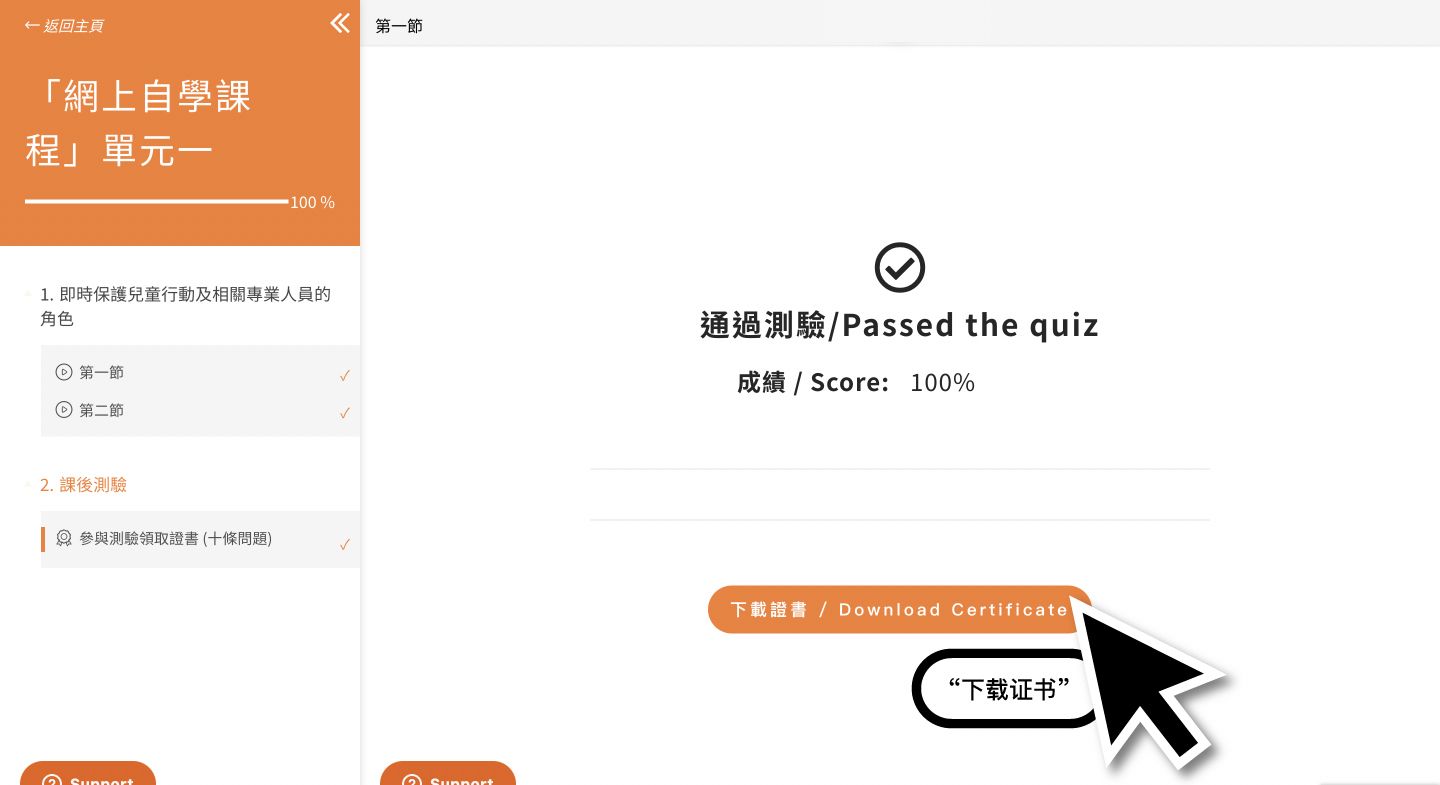
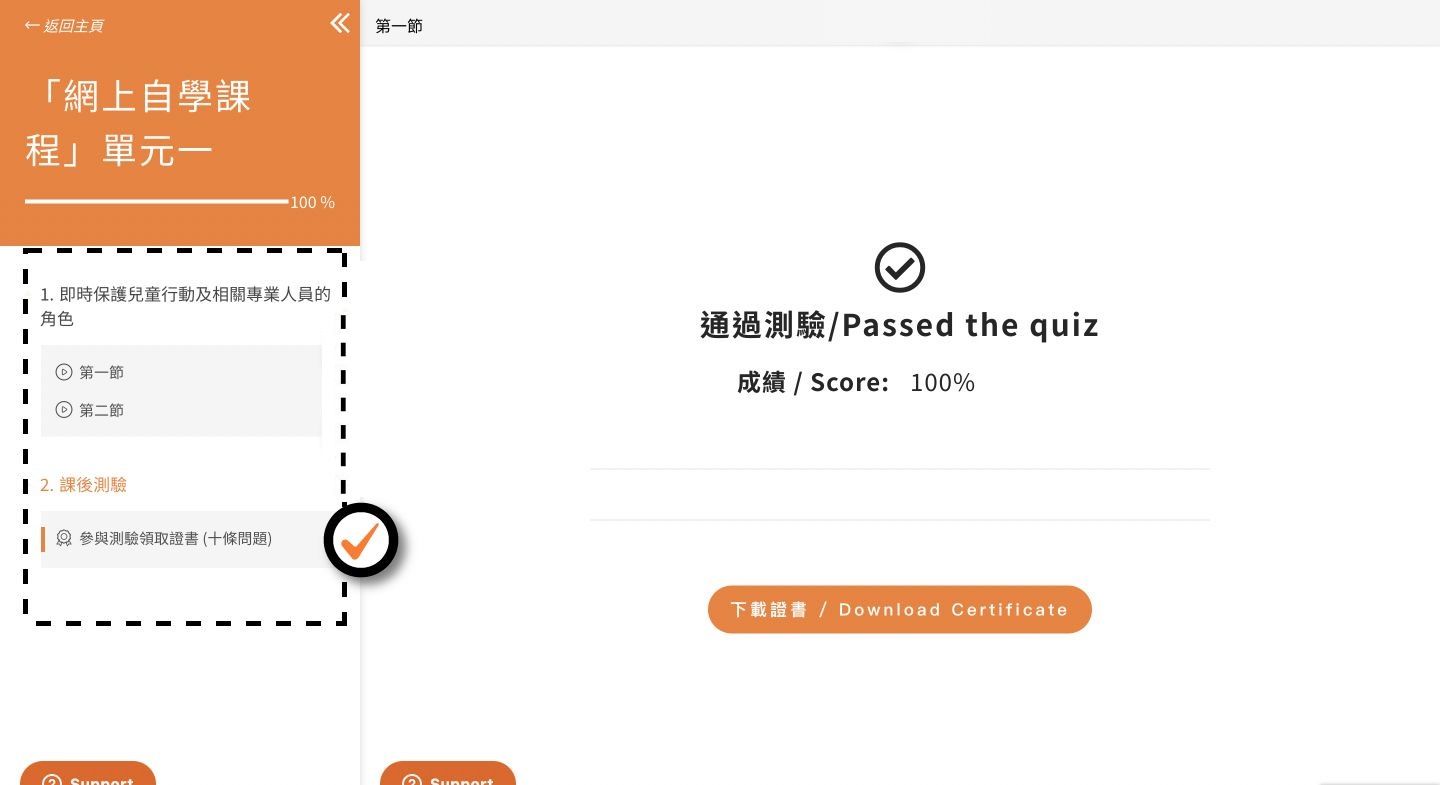
If you score 90% or higher in the quiz, you can click "Download Certificate" to download the e-certificate of the respective module.
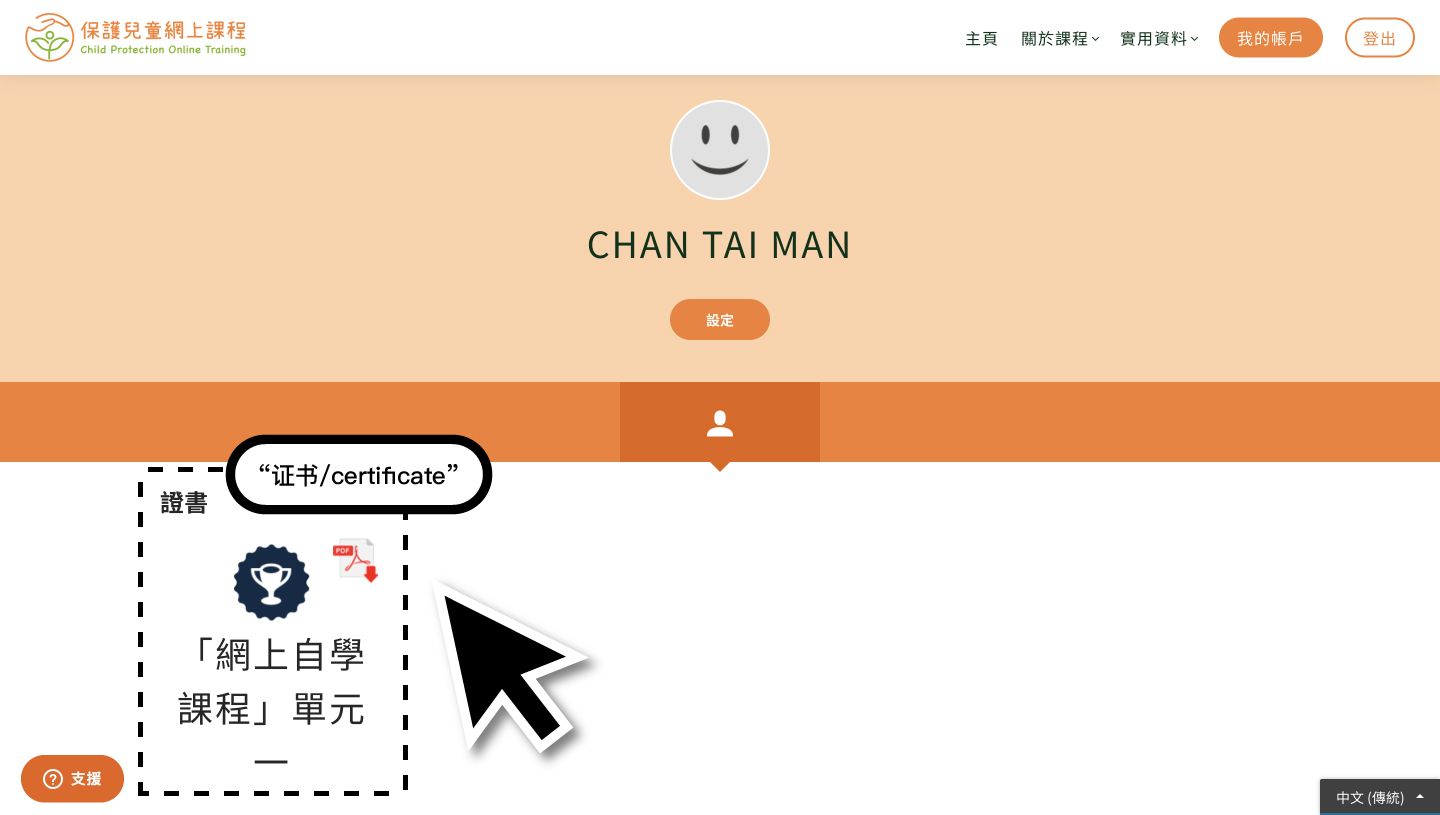
After downloading, you can also view your e-certificate in "My Account".
After completing the post-course quiz and scored 90% or above, the quiz would be marked with a "✓", the e-certificate could be downloaded accordingly.
Please follow these steps to check:
i. Check your email and password: Make sure you are entering the email and password you registered with, and pay attention to case sensitivity.
ii. Reset your password: If you forgot your password, you can click on "Forgot Password?" on the login page and follow the instructions to reset it.
After logging in, you can go to "My Profile" and click "Setting" to update your account information.
In the"User Details" section, update your full name and email address. After entering the information, click "Save".
(Please ensure that the registered email address is valid.)
(The name displayed on the e-certificate is not the name you used during registration. Instead, it displays the full English name you entered and confirmed before taking the post-course quiz.)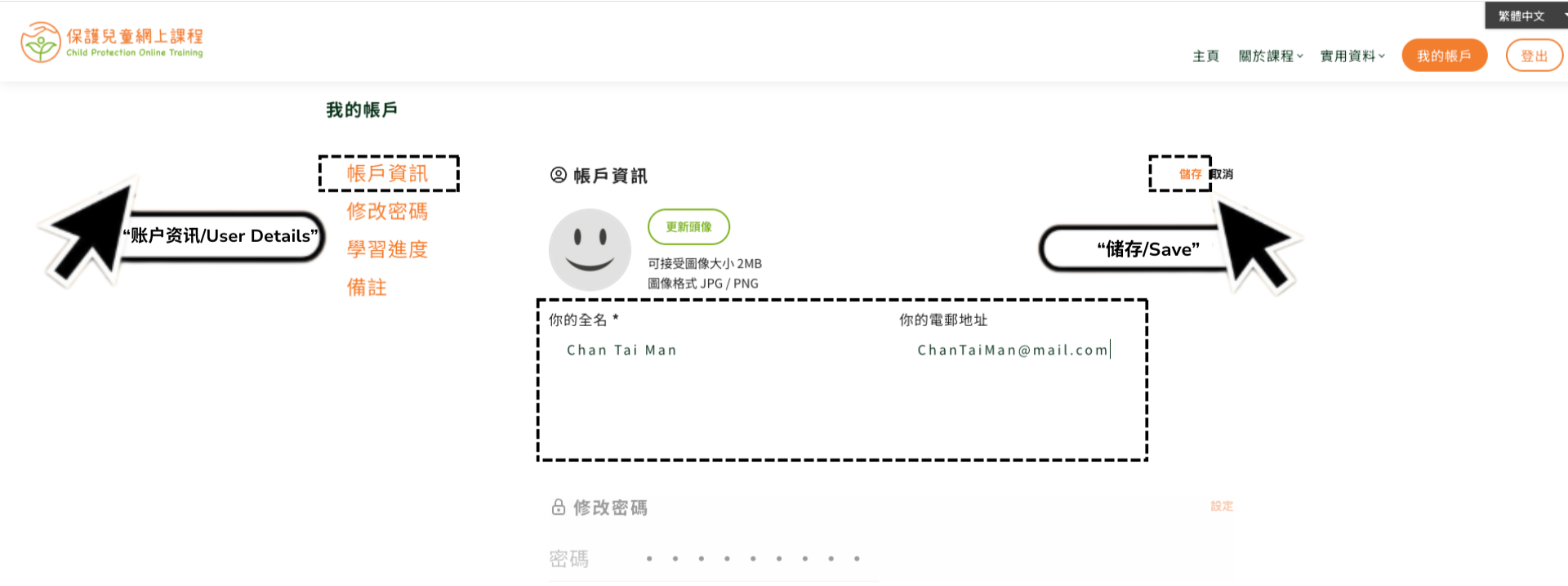
Change your password in the "Change Password" section, enter the information, and click "Save".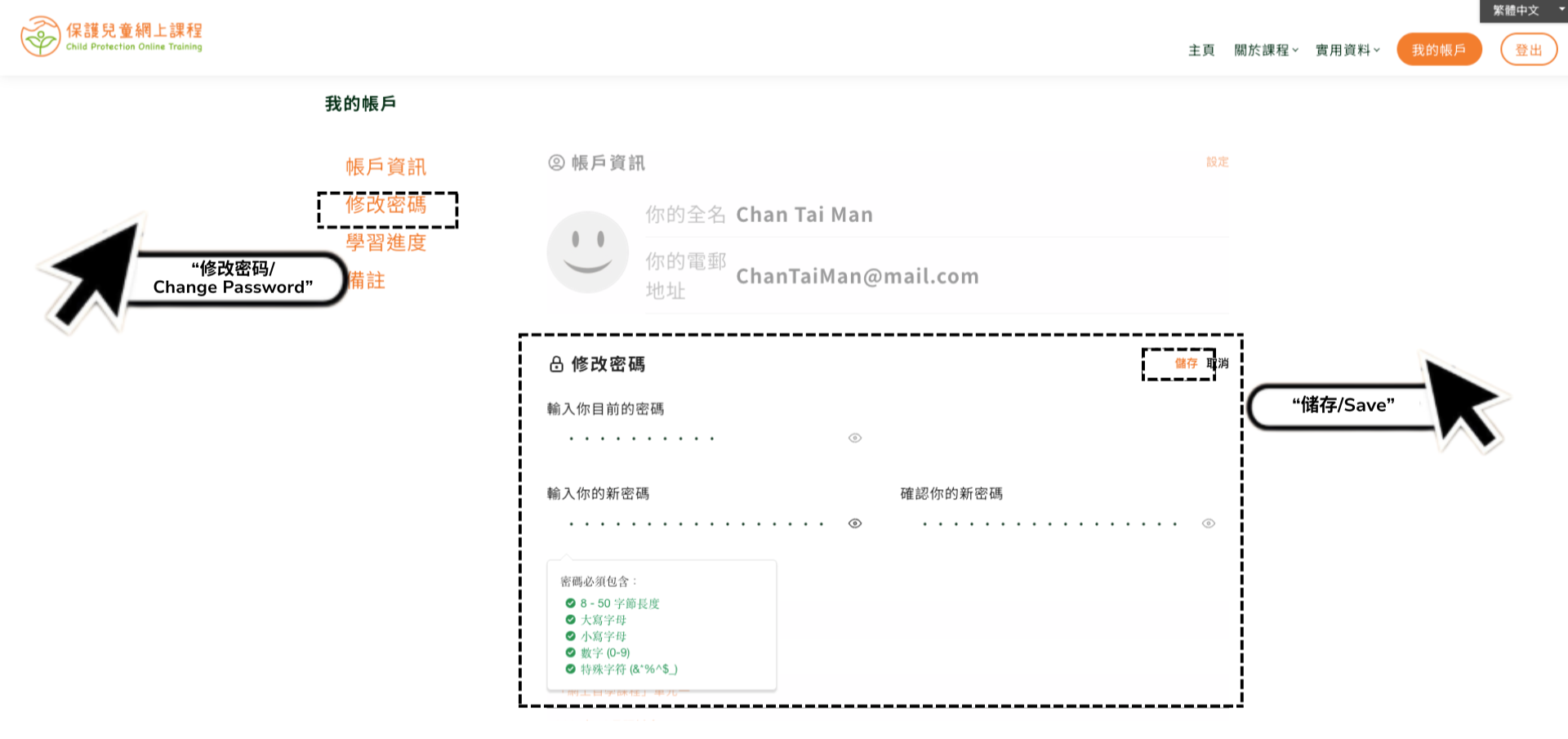
With this adaptive web design, you can easily change the text size to fit your personal needs.
Shortcut
If you browse a desktop computer to browse the "Online Child Protection Training" webpage, a modern web browser will allow you to hold down the Ctrl key (Command key on a Macintosh keyboards) and press the + / - key to increase or decrease the text size, and 0 to go back to the default size. On a smartphone or a tablet, you can simply pinch open on the screen to zoom in (i.e. to enlarge) and pinch close to zoom out (i.e. to reduce) everything.
Menu
You may also change the text size from the menu. Choose from the following web browsers for specific instructions:
Chrome
On the Page menu, select "Zoom", then select "+" to make the text size bigger.
Firefox
On the "View" menu, select "Zoom", then Zoom In. Or you may click on the Menu icon and select "+" or "-" to make the text size bigger or smaller.
Microsoft Edge
Select "Settings and more" ••• and then choose Zoom in "+" or Zoom out "-".
Opera
On the "View" menu, select "Zoom". Then choose a percentage.
Safari
On the "View" menu, select "Make Text Bigger".
Disclaimer